eseq user manual
Arrangement
The arrangement is eseq's timeline. It places patterns and recorded takes at fixed positions in time, so the project plays as a finished piece rather than as a set of loops you launch by hand. It is the same transport that plays scenes: Play always starts the arrangement, and a scene or pattern you launch by hand overrides it until you hand control back.
This chapter explains what the arrangement holds, how playback reads it, and how to build and edit it. It assumes the model from The eseq concept: tracks own patterns, and scenes choose a pattern for every track and hold the project-wide state.
What the arrangement holds
Every project has an arrangement. It has one scene lane and one track lane for each track, all on a shared time axis measured in bars of four beats.
A track lane holds clips. A clip places one source on that track between a start and an end. The source is one of two things:
- a pattern from the track's pool. The clip loops the pattern for as long as the clip lasts. A clip shorter than its pattern plays only the part that fits.
- a take, a linear recording of notes made on the timeline. A take plays once from its start to its end and never loops. If the clip runs past the end of the take, the rest of the clip is silent.
A clip also holds an offset, the position inside the source at which the clip starts. That is how a clip trimmed from the left keeps playing the same notes at the same beats.
Clips on one lane never overlap. Where a lane has no clip, that track is silent. There is no fallback to a scene's pattern: everything you hear in the arrangement is a clip you can see, select and delete.
The scene lane holds scene markers. A marker names a scene and takes effect from its beat until the next marker. It recalls that scene's project-wide state:
- bus and group settings, including their effects;
- modulation routings;
- graph and neural sequencer state;
- the default process lanes, which every track runs ahead of its own added lanes;
- scene values declared by the interface or by packages.
A marker does not recall the scene's choice of pattern for each track, or of clip for each Drum Rack. Those choices decide what plays when you launch the scene; in the arrangement, clips decide.
Note that a scene marker never places notes and never changes a clip. A marker for scene 2 does not make the tracks play scene 2's patterns. The explicit gesture that writes a scene's patterns into the track lanes is Place Scene Patterns, described below. This split lets a bass clip run on unchanged while the marker above it changes the reverb on a bus.
Clips refer to patterns; they do not copy them. Ten clips of the same pattern play the same pattern, and editing it in the step grid or piano roll changes all ten, along with every scene that uses it. Takes are different: each take belongs to its own clips, and copying a take clip makes a new take.
The arrangement also has an end. A new project's arrangement is empty and 16 bars long. The end grows automatically when a clip, a paste or a recording runs past it, and it can be moved by hand.
How playback reads it
When you press Play, eseq does the following:
- Playback starts at the cursor, the triangle marker in the ruler.
- If no scene marker governs the cursor and no lane has a clip there, as in a new project, or if the cursor is past the arrangement's end, eseq launches the currently selected scene for you. You hear that scene looping, and the Back to Arrangement button lights to show that you are hearing a launch, not the timeline. A stretch under a scene marker with no clips is silence you placed on purpose, and Play leaves it silent.
- Otherwise, each track plays whatever clip lies under the playhead, and the scene lane recalls project-wide state at each marker.
- At the end of the arrangement, playback does not stop. The playhead runs on past the end, and any launched scene or pattern keeps looping. This leaves room to play on after the arrangement or to start there deliberately.
The transport's Stop button stops playback and returns the cursor to bar 1.
Overrides and Back to Arrangement
Launching a scene from the transport, or a pattern from a mixer cell, is always an override of the arrangement, whether the transport is running or stopped. A scene launch takes over every track; a pattern launch takes over one. Overridden tracks play what you launched instead of their clips. Their clips are drawn darker, and the scene lane darkens too when a scene launch has taken it over.
A mixer cell click does one more thing while the transport is stopped: it also changes the current scene's pattern for that track. While the arrangement plays, a cell click only launches. See Patterns and scenes.
The override lasts until you click Back to Arrangement in the transport: the tile with a play triangle and three lanes, lit while anything is overridden. It survives Stop, so a launch made while stopped is what Play plays next. If Play gives you a loop instead of the timeline, check that button first.
Two other things hand every track back. Ending a recording pass in the arrangement view (Stop, or turning Record off) clears the override, because the launches you made are now written on the timeline. Opening another project clears it too.
The arrangement view
Press Tab to switch between the session view and the arrangement view. The two view buttons at the right end of the transport and View > Arrangement do the same.
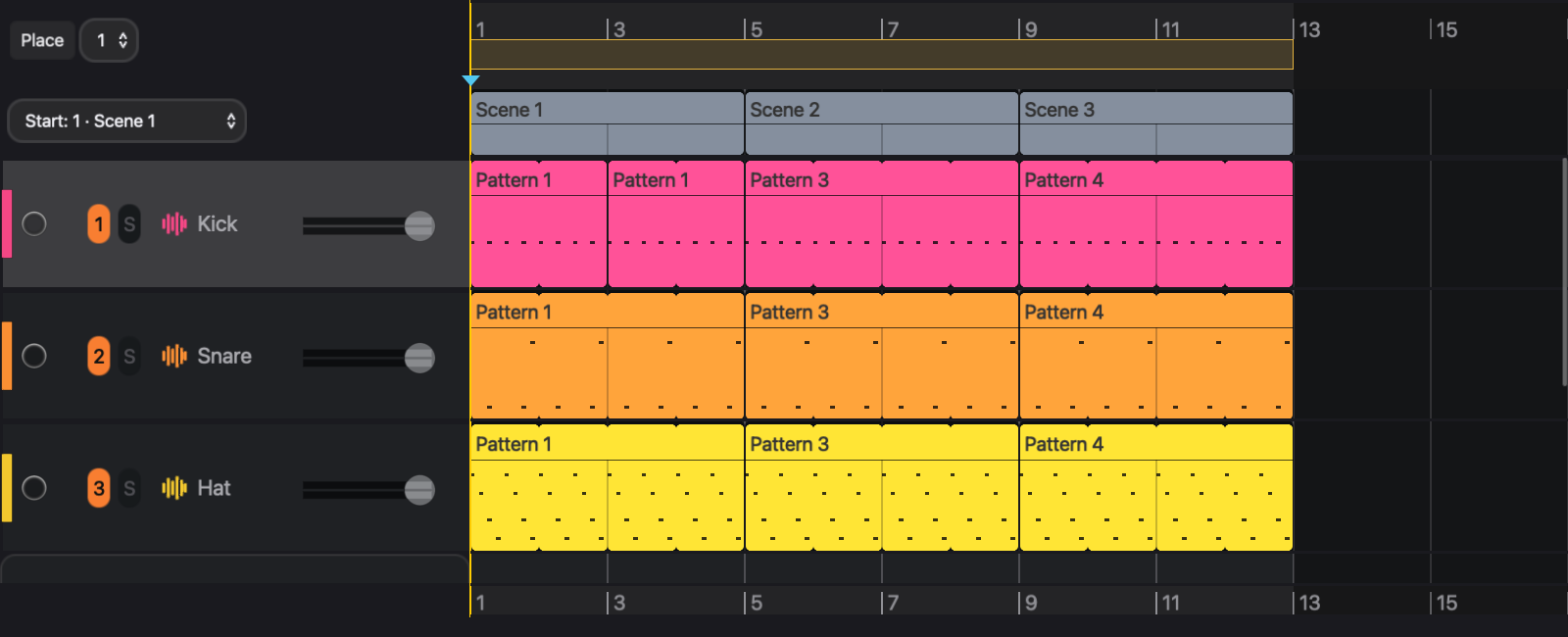
The view has these parts, from top to bottom:
- Place, the pattern selector beside it, and the starting-scene menu. These are described in the sections below.
- The ruler, numbered in bars. The shaded band shows the arrangement's length; drag its right end to change the end. The end cannot be moved before the last clip or onto the last scene marker.
- The scene lane.
- One row per track. The header on the left is the same as in the session view: the record-arm circle, the numbered mute button, S for solo, the track name and a volume control. Collapsed tracks are hidden here too.
- Drop sounds here to add a track, a drop target for a sample, an instrument or a Sound.
- A second ruler at the bottom.
The mixer is hidden when you enter the arrangement view. The transport's mixer button shows it again, which is useful when you want to drag pattern cells onto the timeline.
To move around the timeline:
- Scroll sideways over any lane to pan in time. Scrolling up and down moves through the tracks.
- Scroll over the ruler, or pinch, to zoom. The view shows between 4 and 1,024 beats.
- With a lane focused, press + or - to zoom. Escape clears the selection or region.
- Click or drag in the ruler to set the cursor.
- Click empty space in a track lane to set the cursor at that time. A paste lands at the cursor's time, on the tracks it was copied from.
Edits snap to a grid that follows the zoom level, and moved or resized clip edges also snap to the edges of neighbouring clips. If an edit is refused, a red Edit rejected strip at the top of the view says why, and nothing changes.
Placing patterns
Place puts one full cycle of a pattern on a track lane.
- Select the track.
- Choose a pattern in the selector beside Place. If you choose nothing, the selector shows the pattern the track is currently playing.
- Click Place, or press Command-P. The button lights, and a preview of the pattern follows the pointer in each lane.
- Click in a lane where the clip should start. Each track places its own current pattern, or the one chosen in the selector. Place mode stays on, so you can keep clicking.
- Press Command-P, click Place, or press Escape to leave place mode.
The new clip is exactly one cycle of the pattern long, and it starts at the pattern's first step. Place never overwrites: if the cycle would overlap an existing clip, the placement is refused. Make room first, or lengthen a clip that is already there.
There are two other ways to place a pattern:
- Drag a pattern cell from the track's mixer strip onto the same track's lane. The clip starts at the bar where you drop it.
- Right-click empty space in a lane and choose Insert Pattern n here, where n is the pattern shown in the selector.
To swap the source of an existing clip, right-click it and choose a pattern from Change Pattern. The clip keeps its position and length.
Editing clips
Each clip has a title bar, which shows Pattern and the pattern's number, or Take and the take's number, and a body, which shows a preview of the notes. The title bar is the handle for selecting and moving the clip; a click or drag on the body behaves like one on empty lane space.
- Select: click the title bar. The clip is selected, the cursor moves to its start, and the track's device panel shows the sound that clip plays with.
- Move: drag the title bar left or right. A clip moves only in time, never to another track. It keeps its offset, so it plays the same music at its new position. Whatever it lands on is cut back to make room.
- Resize from the right: drag the right edge. A pattern clip loops for longer or stops sooner. A take clip dragged past the end of its take lengthens the take, adding silence, up to the take limit of 4,096 steps (see Piano roll). The right edge cannot pass the arrangement's end, so move the end first to make a clip longer than the arrangement.
- Resize from the left: drag the left edge. The offset changes with it, so the notes that remain stay at the beats where they were. Growing a clip to the left reveals the earlier part of its source.
- Delete: select the clip and press Delete. The span becomes silent.
- Open: double-click the title bar. The piano roll opens below on that clip's source, whether pattern or take; see Piano roll.
- New empty take: double-click empty space in a lane, or right-click it and choose Create empty take here. This creates a one-bar take clip, for notes you want to draw rather than record, and opens it in the piano roll.
Dragging an edge past the opposite edge deletes the clip. Every clip edit is one undo entry.
Regions
A region is a rectangle of time across one or more tracks. Copy, paste, duplicate, delete and move all act on a region.
- Drag across empty lane space to select a region. Drag up or down to include more tracks. The edges snap to the grid.
- Drag across the scene lane to select a time span over every track. This region also carries the scene markers inside it.
- Press Command-A to select every clip on every track as one region.
- Clicking a clip's title bar makes that clip a one-clip region, so the commands below work on a single clip too.
With a region selected:
- Command-C copies it.
- Command-V pastes at the cursor, onto the same tracks the region was copied from. The destination snaps back to the grid the region was copied on, at most one bar. Paste overwrites whatever is under it and extends the arrangement if needed.
- Command-D duplicates it: the copy is inserted directly after the region, and the region moves onto the copy, so repeated presses keep extending. Material after the region on the selected tracks moves right to make room. If the region covers every track or was swept in the scene lane, everything after it moves, scene markers included. Otherwise the other tracks and the scene lane stay where they were.
- Delete removes the clips inside the region and leaves the span silent. A scene-lane region also removes its markers.
- Dragging the title bar of any clip inside the region moves the whole region in time.
A region's edge can fall in the middle of a clip. The part inside is copied or deleted, and it keeps playing exactly the notes it played in place.
Note: paste and duplicate treat the two kinds of source differently. A pasted pattern clip refers to the same pattern as the original. A pasted take clip gets a new take, a copy named after the original (the name appears in the piano roll header; the clip still reads Take and a number), so editing one does not change the other.
Scenes on the timeline
Scene markers are placed and edited in the scene lane:
- Set starting scene, below Place, sets the marker at bar 1. Once set, it reads Start: followed by the scene.
- Right-click the scene lane and choose a scene from Set Scene Here. The marker lands on the bar you clicked. Past the end, this extends the arrangement to the next bar line.
- Double-click empty space in the scene lane to set the current scene there.
- Drag a scene's button from the transport onto any lane. The marker lands on the bar under the pointer. Dropping at or past the end moves the end to four bars after the drop point.
- Right-click an existing span for Change Scene, Place Scene Patterns and Remove Scene. You can also click a span and press Delete to remove its marker.
- Drag a span to move its marker. Drag a span's right edge to move the next marker; on the last span, this moves the arrangement's end.
Every scene-lane edit leaves the clips alone.
Place Scene Patterns writes the patterns of the span's scene into the track lanes, from the marker to the next marker or to the end. It replaces every clip in that span, takes included. A track whose cell is empty in that scene becomes silent over the span. The whole action is one undo entry.
A clip written by Place Scene Patterns starts at the point its pattern would have reached if it had been looping since bar 1. Where a scene begins in the middle of a pattern cycle, the pattern continues in phase instead of restarting, so moving a scene boundary never shifts the rhythm of what plays under it.
A worked example
This example continues the project from The eseq concept: four tracks (Kick, Hat, Bass, Keys), a reverb on Bus A, and two scenes. Scene 1 plays each track's first pattern with a long reverb. Scene 2 has busier hats, a brighter bass and a short reverb, and it shares the Keys 1 pattern with scene 1.
- Press Tab to open the arrangement view. The arrangement is empty and 16 bars long.
- Choose Scene 1 in Set starting scene.
- Drag the transport's scene 2 button onto the scene lane at bar 9. The scene lane now reads Scene 1 for bars 1–8 and Scene 2 for bars 9–16. The track lanes are still empty, so Play at this point gives silence: the markers recall state but place no notes.
- Right-click the Scene 1 span and choose Place Scene Patterns. Do the same on the Scene 2 span.
- Click the title bar of the Kick clip at bar 1 and drag its left edge to bar 5.
The arrangement now looks like this:
bar          1         5         9                  17
scene lane   | Scene 1           | Scene 2          |
Kick                   | Kick 1  | Kick 2           |
Hat          | Hat 1             | Hat 2            |
Bass         | Bass 1            | Bass 2           |
Keys         | Keys 1            | Keys 1           |
On screen the clips' title bars read Pattern 1 and Pattern 2; the diagram names them by track for clarity.
Press Stop to put the cursor at bar 1, then Play:
- Bars 1–4: hat, bass and keys play their first patterns through the long reverb. The kick lane has no clip, so the kick is silent.
- Bar 5: the kick enters on the downbeat. Trimming a clip from the left keeps its notes on their beats.
- Bar 9: the kick, hat and bass clips change to their second patterns. The hats get busier and the bass gets brighter, because the cutoff is stored in Bass 2's patch. The reverb shortens, because the scene 2 marker recalls Bus A. The keys keep playing Keys 1 in the second clip.
- Edit a chord in Keys 1 and both keys clips change, because both refer to the same pattern.
To repeat the second section, drag across the scene lane from bar 9 to bar 17 and press Command-D. Bars 9–16 are copied to bars 17–24, marker included, and the arrangement becomes 24 bars long.
Recording into the arrangement
Recording that starts in the arrangement view writes onto the timeline. Recording that starts in the session view overdubs into looping patterns instead. The view you are in when recording starts decides which, and switching views during the pass does not change it. Arming, quantization and the controls are covered in Recording.
A pass in the arrangement view records two things at once.
Takes. Each armed track that receives notes gets a take clip over the span it played; see Recording for how takes are recorded.
Launches. Scenes and pattern cells launched during the pass are written onto the timeline where they took effect, after launch quantization:
- a scene launch writes a scene marker, plus a clip of that scene's pattern on every track;
- a pattern launch ends the track's current clip and starts a clip of the new pattern;
- the captured span runs from the first launch to the point where recording stopped. Clips and markers before the first launch and after that point are not changed.
The scene buttons are always in the transport. To reach the pattern cells, show the mixer, or switch to the session view: the pass keeps writing to the arrangement.
While the pass runs, its takes and launch clips grow on the timeline under the playhead. They become real clips when the transport stops or Record is turned off. The whole pass, takes and launches together, is one undo entry. Other arrangement edits are refused until the pass ends.
Note: a scene launch takes over every track, including one whose lane is playing a take. The take stops at the launch and the scene plays from there on; the part of the take before the launch is kept. A take recorded during the same pass is painted over whatever the launches put on its lane.
To try launch capture on its own, record with no tracks armed and switch between two scenes; each switch appears on the scene lane with its clips. In an empty arrangement the scene that Play launches for you is captured as well, so the lane starts with a marker at bar 1.
Looping the arrangement
By default the arrangement does not loop; playback continues past the end, as described above. The arrangement can loop from its end back to bar 1, but there is no control for this in the view. Evaluate (seq-song-set-loop true) from Lisp to turn it on, and (seq-song-set-loop false) to turn it off. The setting is saved with the project.
Note: with looping on, a recording pass in the arrangement view ends at the arrangement's end instead of wrapping. The transport stops there, and what was recorded up to the end is committed.
Markers recall state; clips make sound. To render the arrangement to an audio file, see Saving and export.