eseq user manual
Step sequencer
The step sequencer is eseq's grid editor for patterns. It shows every track's pattern as steps, and it holds the settings that decide how those steps are timed, pitched and voiced. This chapter covers step entry, the values a step carries, pattern timing, pitch, voice settings and the Pattern menu.
Four related subjects have chapters of their own: per-step instrument and effect values (Parameter locks), values computed as the pattern plays (Process lanes), editing by pitch and time (Piano roll), and switching between patterns (Patterns and scenes).
Steps and pages
A step is one position in a pattern's timeline. A pattern has from 1 to 256 steps. They are counted in pages of 16, so a 256-step pattern has 16 pages.
Each step holds:
- whether it plays;
- its pitch, which is its Transpose value, or a chord of several notes with their own pitches;
- eight step values: Transpose, Velocity, Duration, Pan, Sync, Delay, Retrig and Rate;
- any parameter locks on instrument, effect or mix controls.
A step keeps its eight values whether or not it plays. Turning a step off keeps those values but removes its chord and its parameter locks; turning it on again restores only the values.
In the sequencer each track is one row; a pattern longer than 16 steps wraps onto further lines. The track shows the whole pattern as round step buttons, 16 to a line. The lines are numbered at the left, and the line being played brightens. A lit button is a step that plays. A step with parameter locks carries a marker.

Entering and selecting steps
Clicking a track makes it current. The step inspector, the track settings and the device panel then refer to it. Double-clicking a track opens its pattern in the piano roll in the lower panel; double-clicking again returns the panel to the devices.
With the mouse:
- Click an unlit step to turn it on. Drag across unlit steps to turn on each one you pass.
- Click a lit step to select it. Double-click a lit step to turn it off.
- Drag a lit step to move it. If the step is part of a selection, the whole selection moves.
- Press the right edge of a lit step and drag to set its length in whole steps, from 1 to 32. Pressing the edge resets the length to one step until you drag, so a stray click there shortens the note; use Command-Z to undo.
- Shift-click selects the range from the previous anchor to the clicked step. Command-click adds a step to the selection, or removes it.
- Press a step and hold for about a third of a second before dragging to sweep a selection instead of painting or moving.
With the keyboard, in the sequencer:
- Left and Right move the cursor along the current track, wrapping at the ends. With steps selected they shift the selected steps one step instead.
- Shift-Left and Shift-Right extend the selection from the cursor.
- Return turns the cursor step on or off.
- Up and Down change the current track.
- Backspace or Delete removes the selected steps.
- Command-A selects every step of the current track. With a drum rack, or two or more tracks, selected, it selects every step on each of them, so one Backspace clears them all.
- Escape clears the selection. With nothing selected, the inspector and the lane number field edit the cursor step, and device controls set the pattern's base value.
- Command-C copies the selected steps, or the cursor step when nothing is selected. Command-V pastes them starting at the cursor. Command-X cuts.
Every edit is undoable with Command-Z.
Note: while the arrangement plays a track from a clip, that track is dimmed and does not accept edits, because the edit would change a pattern the lane is not playing. See Arrangement.
Selecting several tracks
Shift-click a track to select the range of tracks from the current one to the clicked one. Command-click a track to add it to the selection, or remove it. While two or more tracks are selected, Command-A selects every step on each of them, and a change in the track settings applies to every selected track as a single undo step.
Step values
The eight step values are part of the pattern. They shape each note before the instrument hears it.
- Transpose: pitch in semitones, where 0 is C4. An instrument's base note setting can shift what 0 plays. The step inspector reaches -48 to +48; the tpose lane covers -12 to +12. Default 0.
- Velocity: 0 to 1. Default 1.00.
- Duration: note length in steps, 0 to 32. Default 1.00, one step. The lane slider gives its lower half to the first two steps, where most lengths sit.
- Pan: -1 (left) to +1 (right). Default 0.
- Sync: Off, 1/16, 1/8, 1/4, 1/2 bar, 1 bar, 2 bars or 4 bars. The step waits for the next line of that grid before it plays, and the steps after it follow on from there. Default Off.
- Delay: 0 to 1 of a step. The note plays that fraction of a step late. Default 0.
- Retrig: 0 to 127 repeats of the note after the first hit. 127 shows as inf. Default 0.
- Rate: repeats per beat, 1 to 1024. Default 4, sixteenth notes.
The step inspector, at the upper right of the session view, edits Transpose, Velocity, Duration, Pan, Retrig and Rate. Its header names the track, the cursor step and the number of selected steps. With steps selected, a change applies to every selected step. With none selected, it applies to the cursor step. Sync and Delay are edited in the expanded track (below).
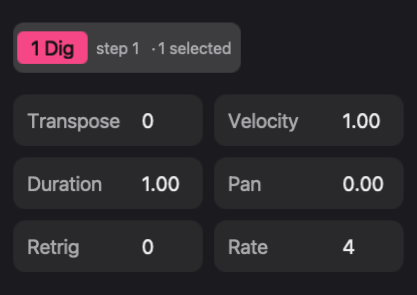
Note: while the transport plays with recording on, dragging an inspector value prints it onto each step the playhead passes, for as long as the mouse button is held. See Recording.
Instrument and effect controls follow the same selection rule. With steps selected, turning a control locks its value on those steps; with none selected, it changes the pattern's base value. See Parameter locks.
Retrig and rate
Retrig and Rate reproduce the Machinedrum's retrig controls. Retrig counts repeats, not hits: Retrig 3 plays four hits. Rate sets their spacing in repeats per beat, independent of the track's timebase. Each repeat retriggers the note.
The repeats belong to the voice, not to the step. They can run past the end of the step, and the next trig on the track cuts them off. At Retrig 127 the note rolls until that next trig.
Up to 32 repeats per beat the result is a rhythm. Above 32 it is heard as a pitched buzz, and the Rate control steps in semitones rather than whole numbers.
Chords
A step can hold a chord. Chords are entered in the Piano roll or recorded live. The notes of a chord share the step's on/off state and its parameter locks. Transpose and Duration on a chord step move all its notes together. Each chord note also has its own length and its own offset into the step, set in the piano roll; the step's Delay does not move a chord.
The expanded track
Expanding a track turns it into a lane editor for one page at a time. Click the ellipsis button at the right end of a track to expand it, and again to collapse it. Collapse All Tracks in the View menu closes every expanded track.
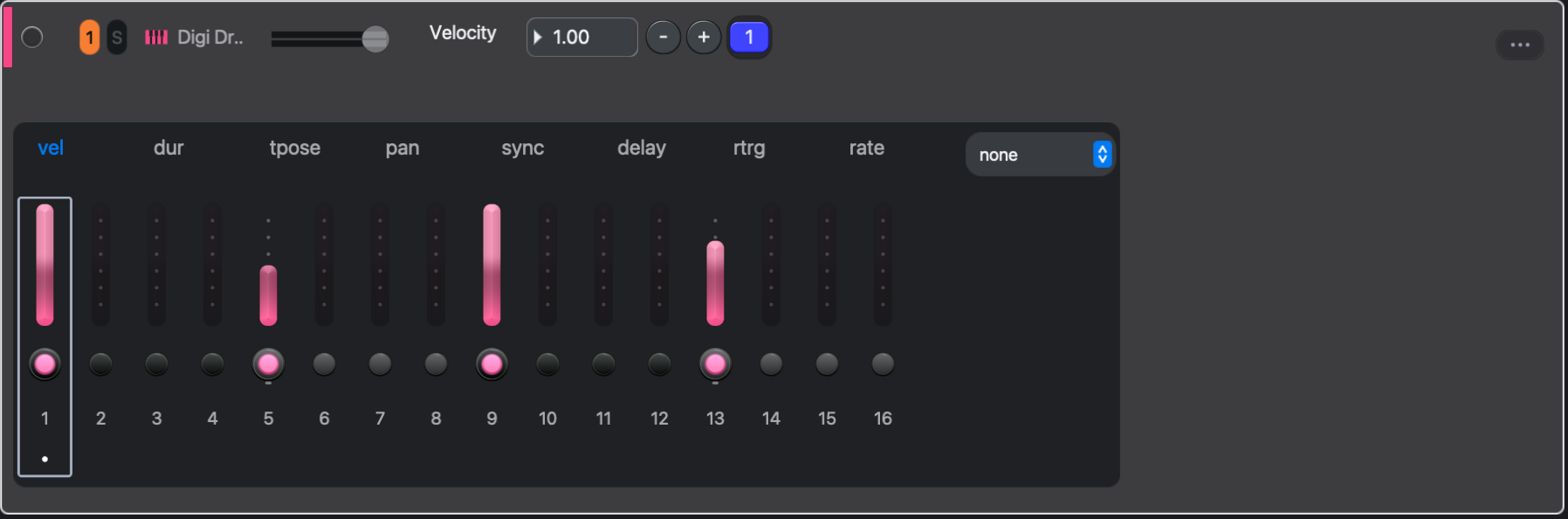
The tabs across the top choose the lane: vel, dur, tpose, pan, sync, delay, rtrg and rate. With the current track expanded, the V, D, T, P and S keys choose vel, dur, tpose, pan and sync. The menu at the end of the tabs opens a process lane instead, and X opens the first one; see Process lanes. Step value lanes draw in the track colour. Process lanes draw in the process-lane accent colour (amber in the default theme), so they never look like a step value.
In the lane:
- Drag a slider to set that step's value. Dragging a selected step's slider sets every selected step. Dragging an unselected step's slider clears the selection first.
- The step buttons and step numbers below the sliders work as they do in a collapsed track.
The header of an expanded track carries:
- the name of the current lane and a number field for its value. (On the sync lane it is a menu of the sync divisions.) The field edits every selected step, or the cursor step when none are selected. With the track current, typing digits enters a value; Return commits and Escape cancels. When another number field has focus, typing goes there instead.
- - and +, which halve and double the pattern length (see "The Pattern menu" below).
- one button per page. Click a page to show it. During playback the lane editor follows the page being played, unless steps are selected; an edit pauses the follow briefly.
- under each page button, that page's bar transpose (see "Pitch" below).
Timing
A track's timing is set in the track settings, below the step inspector. These settings, like the steps, belong to the pattern, so launching another pattern can change them.
- steps sets the pattern length, 1 to 256.
- timebase sets how long one step lasts. The values are 1, 2, 4, 8, 16, 32 and 64 (whole note to sixty-fourth note), the triplets 2T, 4T, 8T, 16T, 32T and 64T, and Prh. The default, 16, makes a step a sixteenth note, so 16 steps fill one bar of 4/4.
- Prh divides one bar evenly among all the pattern's steps, whatever their number. Five steps at Prh play a five-against-four polyrhythm.
- swing runs from 50 to 75. At 50 the steps are straight. Above 50, every second subdivision is delayed; 66.7 gives a triplet shuffle and 75 a dotted feel.
- swg res chooses the subdivision that swings: 1/16, 1/8, 1/4 or 1/2.
With steps selected, changing the timebase, swing or swing resolution locks the new value on those steps instead of changing the track. A step with a locked timebase lasts that timebase's length, so a few steps locked to 32 make a quick burst inside a sixteenth-note pattern.
Each track runs its own pattern length. Tracks of different lengths drift against each other and realign when their lengths coincide: at timebase 16, a 16-step hat against a 7-step percussion line repeats as a whole only every seven bars.
Sync and Delay act on single steps. Delay pushes a note late within its step without moving anything else. Sync moves the step itself, and every step after it, to the next grid line. Sync on step 1 also pads the end of the pattern out to that grid, which keeps an odd-length pattern locked to the bar.
Example: a hi-hat line
Start with a 16-step hat pattern at timebase 16, every step lit, swing 50. It plays straight sixteenths for one bar.
- Command-click steps 2, 4, 6 … 16 to select them, then set Velocity to 0.40 in the step inspector. The hats now accent the eighth notes.
- Set swing to 66.7 with swg res at 1/16. The quiet off-beats move a third of a sixteenth late, into a shuffle.
- On step 12, set Retrig to 1 and Rate to 8. That step now plays two thirty-second-note hits in the space of one sixteenth.
- Set steps to 14. The pattern loops two steps early and walks against a 16-step kick on another track.
- Set Sync on step 1 to 1 bar. The 14 steps still play, then the track waits out the last two sixteenths, so every repeat starts on the bar again.
Pitch
A note's pitch is built up in stages as the step plays:
- The step's Transpose, or each chord note's own pitch, is read from the pattern.
- The bar transpose of the page the step is on is added.
- The process lanes run, and can add to the pitch or replace it; see Process lanes.
- If the track has a scale, the pitch snaps to the nearest note of that scale.
- The scene transpose is added.
None of these stages change the notes stored in the pattern.
A bar transpose is a semitone offset for one 16-step page, set in the field under that page's button in the expanded track. Every note on the page moves by that amount, and chords move as a block. Bar transposes belong to the pattern. A page at 0 has no bar transpose, and its field is dimmed.
The scene transpose is the field beside the tempo in the transport whose value reads in st (semitones), such as 0st. It ranges from -48 to +48, and each scene keeps its own value. Right-click it to apply the current value to every scene in the bank, or to every scene in every bank. Every track follows the scene transpose, drum tracks included. To exempt the current track, evaluate:
(seq-set-track-param :global-transpose false)The scale menu in the track settings snaps each note to the nearest degree of a scale on C: Major, Minor, Dorian, Mixolydian, Lydian, Phrygian, Locrian, Pent. Major, Pent. Minor, Blues, Whole Tone or Diminished. Off leaves notes as they are. The scene transpose is added after the snap, so a scene transpose that is not a multiple of 12 can move notes off the scale.
Example: one step through the stages
A step has Transpose +4 (E4) and sits on page 2 of a bass pattern.
- Page 2 has a bar transpose of +3. The pitch becomes +7, G4.
- The track has no process lanes painted, so the process stage leaves the pitch alone.
- The track's scale is Pent. Minor (C, E flat, F, G, B flat). G is in the scale, so the pitch stays at +7.
- The current scene has a scene transpose of +2. The note sounds as A4.
The pattern still stores +4 on that step. Launching a scene with a scene transpose of 0 plays G4 again.
Voice settings
The voice settings decide what happens when notes overlap. They belong to the pattern's patch, so they can differ from pattern to pattern.
- poly switches the track between polyphonic (ON) and monophonic (OFF).
- voices sets how many notes can sound at once, 1 to 12. On a rack track it sets the voice count of the selected rack slot.
- priority decides which notes keep a voice when more notes are held than there are voices: Last (the newest), High or Low.
- trigger decides how a mono track handles an overlapping note. retrig restarts the envelopes on every note. legato changes pitch and velocity without restarting them, and returns to the previous held note when the newer one is released. It takes effect only when the track plays mono: poly OFF, or voices at 1.
- mute grp puts the track in one of eight mute groups, or Off. A note on a track sends the notes sounding on every other track in the same group into their release. Put an open and a closed hi-hat in one group and each chokes the other.
priority and trigger appear only for instrument and rack tracks, not for sampler tracks.
A chord needs as many voices as it has notes. A mono bass with legato and overlapping durations plays as one connected line: the envelopes are not restarted from one note to the next.
The Pattern menu
The Pattern menu acts on the current track's pattern. The main items are:
- Double Pattern Length (Command-+) doubles the step count and copies the existing steps into the new second half, up to 256 steps.
- Half Pattern Length (Command-minus) halves the step count. The steps past the new end are hidden, not erased.
- Clone Track Pattern copies the pattern cell selected in the mixer, and works while the mixer is the active panel. It is the menu form of Command-D there. See Patterns and scenes.
- Capture MIDI… opens the window that holds your recent playing, so it can be kept after the fact; see Recording.
- Shift Steps Left and Shift Steps Right rotate the whole pattern by one step. The step that falls off one end reappears at the other.
- Transpose adds a semitone or an octave, up or down, to the Transpose value of every step in the pattern.
- Clear Track Pattern… asks for confirmation, then clears every step and parameter lock in the pattern.
Double and Half also work with a drum rack header selected, and then resize the pattern of every pad in the rack. The other items need a single track selected.
Note: Double always copies the first half, so Half followed by Double replaces the hidden steps. To get them back, raise steps in the track settings instead.
Other views of the same pattern
The piano roll, recording and process lanes all edit or drive these same steps; see Concepts for how they fit together.
Packages can add their own tabs beside Seq at the top of the sequencer. Attaching alez/neural adds a var rst tab for its graph sequencer; the experimental alez/tracker adds a Tracker tab that shows the same patterns as note and velocity columns. See Packages.