eseq user manual
Parameter locks
A parameter lock, or p-lock, is a value stored on one step for one device parameter. When that step plays, the locked value replaces the pattern's base value for that parameter; when the next step without a lock plays, the base value returns. The idea comes from Elektron's machines. With locks, a single pattern of four kicks can have a closed filter on one hit, a long decay on another and a reverb send on a third, without a second track or a separate automation track.
Locks are the second layer of per-step data in eseq. Every step already carries its own step values: transpose, velocity, duration, pan, sync, delay, retrig and rate (see Step sequencer). Step values are the step's note expression. P-locks cover everything else a device exposes.
What can be locked
Any continuous, switch or menu parameter on the track's own devices can be locked:
- Instrument parameters: every control on a synth or sampler panel.
- Audio effect parameters in the track's effect chain.
- MIDI effect parameters in the track's MIDI effect chain.
- Rack parameters: the 8 macros of a rack, and each slot's gain, pan, base note, voice count, mute and solo, plus the instrument and effect parameters inside the slot. See Racks.
- Sends: the track's send level to each bus, from the send knobs in the mixer strip.
- Timing: the track's timebase, swing and swing resolution, from the track settings.
A timebase lock changes the length of that one step, so a pattern can move from 16ths to triplets and back within a bar. A swing lock changes the swing applied at that step.
Track volume and the mixer pan are not lockable. Per-step panning is a step value.
Locks belong to the pattern's data, but not all in one place. Timing, send and rack macro locks are stored with the steps. Instrument, effect and MIDI effect locks are stored with the pattern's patch, next to the base values they override. A pattern with its own patch therefore has its own locks. Two patterns linked to one patch in the sound palette share their device locks, as they share the base values. A pattern that appears in several scenes carries the same locks in all of them. See Concepts for how a pattern's sequence and patch fit together, and Patterns and scenes for the palette.
Locking selected steps
The rule is the same for every lockable control: with steps selected, a control writes locks onto those steps; with no steps selected, it sets the base value.
- Select steps on the current track. Click an active step to select it alone. Shift-click to select a range, and Command-click to add or remove one step. Press and hold a step, then drag, to sweep a selection. Command-A selects every step of the track.
- Check the count in the step inspector header, for example step 1 · 1 selected.
- Turn a control in the device panel, the track settings or the mixer strip. The value is locked onto every selected step.
- Press Escape to clear the selection before editing the base sound again.
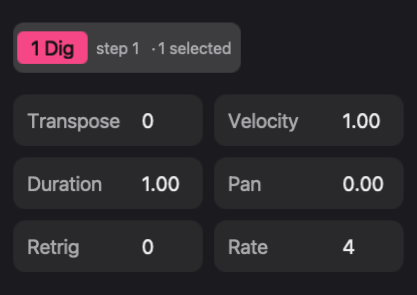
Selection persists while you work in the device panel. That is deliberate, since you may want to lock several parameters on the same steps, but it is also the most common surprise: a knob that "only changes some of the notes" is writing locks. Check the selected count.
Command-clicking or Shift-clicking selects a step without switching it on, so an empty step can be locked too. What an empty step's lock does is described under "Locks on empty steps" below.
Note: a lock written on an empty step stays there. Switching a lit step off is different: it discards the step's locks (see "Clearing locks"). To lock an empty step, select it with Command-click or Shift-click rather than switching it on and off.
A worked example
Start with a Digi Syn track, 16 steps, with notes on steps 1, 5, 9 and 13, and Cutoff Hz set to 1200 in the device panel. All four notes play with the same brightness.
- Click step 1 and turn Cutoff Hz down to 650. Step 1 now plays darker; steps 5, 9 and 13 still play at 1200.
- Press Escape. Turn Cutoff Hz to 2000. Steps 5, 9 and 13 get brighter. Step 1 stays at 650, because its lock replaces whatever the base value is.
- Click step 13 and turn Cutoff Hz to 4000 and Resonance up. Step 13 now has two locks.
- With step 13 still selected, Command-click step 9 to add it to the selection. Turn Resonance again: the new value is locked on both steps.
The base value moved in step 2 and step 1 did not follow. That is the property that makes locks useful, and also the one to remember when a knob seems to have no effect on a step.
Reading locks on the panel
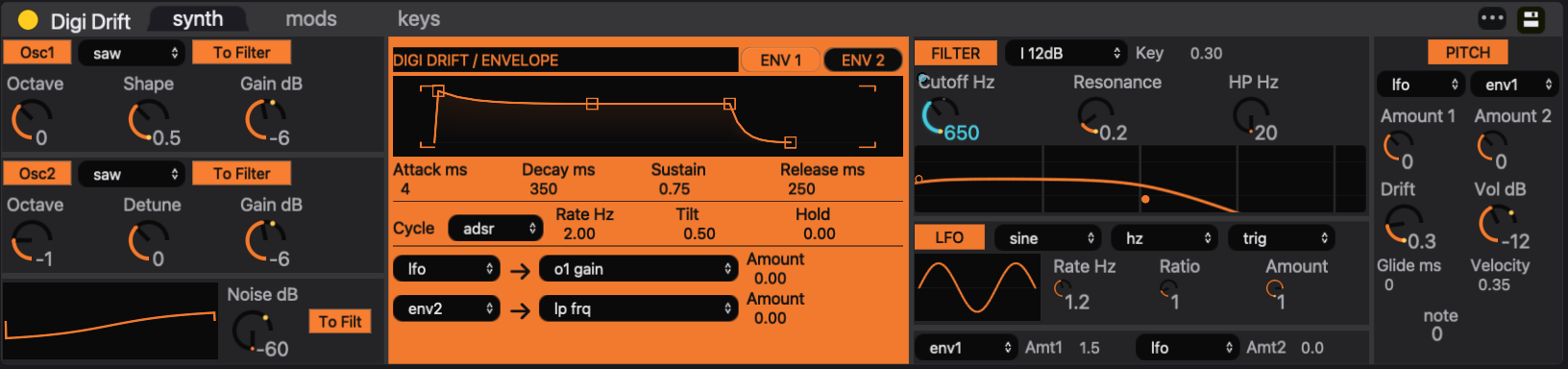
A control that has locks anywhere in the current pattern shows a small marker in its corner. The marker appears whether or not the lock is on a selected step, so it answers the question "does this parameter change during the pattern?".
The value a control displays follows the selected step. With nothing selected and the transport running, it follows the playhead instead, so a knob that jumps during playback is showing recalled locks, not being edited. When the displayed step has a lock on that parameter, the value readout takes the colour of the step's variant (see below).
In the step grid, every step that carries locks is marked in the colour of its variant. A step whose only departures are step values or send locks gets a neutral gray mark.
The lock table
Below the step values, the step inspector lists the locks on the selected step (the lowest-numbered one when several are selected). With no steps selected the table is empty, unless a variant chip is being previewed. Each row has three columns:
- PARAM: the parameter's name.
- LOCK: the locked value. Drag or type to change it.
- DEF: the base value the step would play without the lock.
Rows are grouped by where the parameter lives: INST for instrument, rack macro and rack slot locks; SEQ for timing, send and MIDI effect locks, plus any step values that differ from their defaults; FX for audio effects; NEURAL for graph sequencer nodes. Click a row to select it; Backspace or Delete removes that lock.
When nodes of a graph sequencer are selected instead of steps, the table shows the parameter values those nodes write to their target tracks, in the NEURAL group. See Packages.
Variants
eseq groups steps by their locks. Every distinct set of locked values in the pattern becomes a variant, labelled with a letter (A, B, C and so on) and a colour. Two steps with exactly the same locks share a variant. Change one lock on one of them and it becomes a new variant, unless that exact set already exists. Editing a lock on a step that is the only one using its variant keeps the variant's letter and colour.
The variants of the current track appear as a strip of chips above the lock table. The first chip, base, stands for "no locks".
- With steps selected, click a chip to stamp that variant onto them. Each selected step gets exactly that variant's locks: any lock it had that the variant lacks is removed.
- Click base with steps selected to clear their locks. Send locks are not part of a variant and stay.
- With no steps selected, click a chip to preview it: the lock table lists the variant's values without changing anything.
In the worked example, step 1 is variant A (cutoff 650) and step 13 is variant B (cutoff 4000 plus resonance). Step 9, with only the resonance lock, is variant C. Select steps 3 and 11, click B, and both play with step 13's sound. A variant is a reusable set of locks: build it once, then stamp it onto any step.
A variant exists only while some step uses it: when the last step using it changes, its chip disappears. Letters and colours are kept with the pattern, so they stay stable between sessions. Colours cycle through a set of six.
Recording locks with a knob
Locks can also be performed. With no steps selected, enable Record and press Play, then hold a device control and move it. While it is held, its value is printed as a lock onto each step the playhead passes on the current track, empty or not, and the control shows a highlighted border. One recording pass undoes as a single step.
Instrument, effect, MIDI effect and rack parameters, including macros, can be printed. Send and timing locks cannot; set those by selecting steps. The result is one value per step, not a continuous curve: to draw or correct it, use the automation lane in the Piano roll. What stops printing, and how step values print, is in Recording.
Locks on empty steps
A lock on an empty step (one that plays no note) is applied when the playhead reaches that step's boundary, to the whole track: instrument locks to every voice still sounding, effect locks to the track's effect chain. The value then holds until the next lock or the next step that plays a note.
For example, give step 1 a note long enough to sustain for four steps, then Command-click empty step 3 and lock Cutoff Hz low. The filter closes halfway through the note. Step 5 plays a note without a lock, so the base cutoff returns with it.
This is what makes knob recording on sparse patterns sound like the gesture you made: the printed values on the empty steps shape the notes that are still ringing.
What happens when a step plays
For each parameter of the track's devices, the value used for a triggered step is decided in this order:
- The base value from the pattern's sound is read.
- If the parameter is being printed from a held control, the live value is used.
- Otherwise, if the step has a lock for the parameter, the lock replaces the base value.
- Process lanes run and may write the parameter; a process write replaces the value from the steps above.
- The note plays with the resulting values. Parameters that were not locked or written play at their base values.
The stored lock is never changed by this. A process lane that adds to a parameter adds to the value in force, which is the lock on a locked step. See Process lanes.
Key locks are the per-note sibling of p-locks: instead of "this step plays with cutoff 650", they say "the note C3 plays with cutoff 650", wherever it comes from. They are set in the instrument panel's keys tab and are described in Instruments. Where both apply to the same parameter, the step lock wins; a key lock on another parameter still applies.
Clearing locks
- One parameter, whole pattern. Right-click a control that shows the marker and choose Clear p-locks. Every lock for that parameter is removed, including locks on empty steps, as one undo step.
- One parameter, some steps. With steps selected, the same menu offers Clear p-locks on 3 selected steps (with the actual count).
- Everything on some steps. Select the steps and click the base chip. This clears all but send locks.
- Switching a step off. Turning an active step off removes its locks along with its chord. Its step values are kept. Command-Z restores the locks.
- One lock. Select its row in the lock table and press Backspace, or double-click (or Option-click) its point in the piano roll automation lane.
Apart from switching a step off, these never touch notes, step values or other parameters. Moving a base value never clears locks.
Replacing a track's instrument clears that instrument's parameter locks and key locks in every pattern, and a rack's macro and slot locks with the rack, since the new instrument has different parameters. Effect, MIDI effect, timing and send locks are kept. The status line reports how many patterns lost locks. See Instruments.
When a knob seems to ignore you
Look for the marker first. If the parameter has locks, the step you are listening to may be playing its lock, and playback recalls it right after your edit. Clear the locks or edit them in the lock table.
If there is no marker, check the selected count: with steps selected, your edit went into locks on those steps rather than into the base value.
Then check who owns the value. Track values, locks included, follow the pattern; bus and group values follow the scene. Launching another pattern or scene can therefore change what a control shows. See Troubleshooting.